September 17, 2026
Launching the Tour Stop Library
Reuse Stops: the possibilities are endless
Until now, every stop belonged to one tour. If your admissions tour and your athletics tour both needed the same view of the quad, you built it twice, paid for it twice and updated it twice. Not anymore. Every stop on your account now lives in one place, the new Tour Stop Library, and any tour can use it. Build a stop once, add it to every tour that needs it, and when you update it, every tour that uses it updates too. A stop used in five tours still counts as one stop toward your plan.
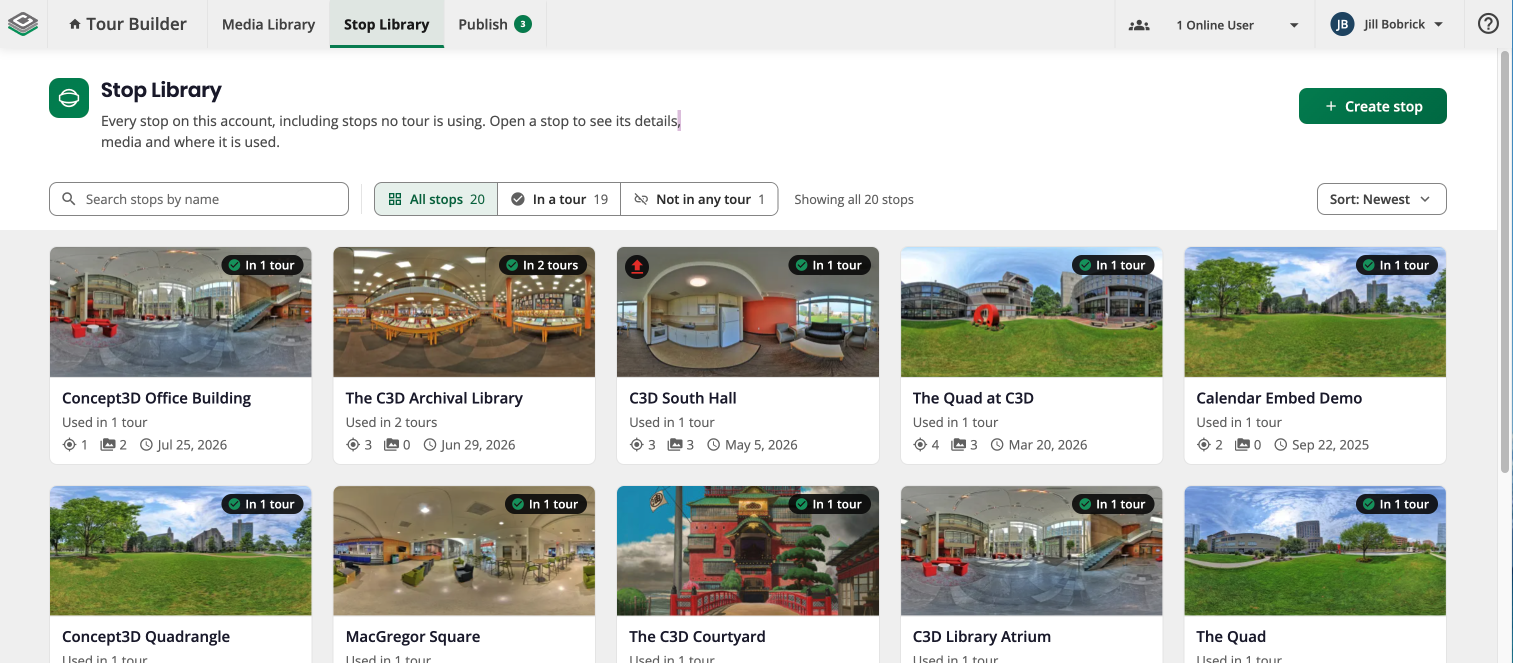
- Manage stops without opening a tour. Open Stop Library in the header to create, edit, and search stops. Stops stay in the library even when no tour is using them, so you can build ahead of a launch.
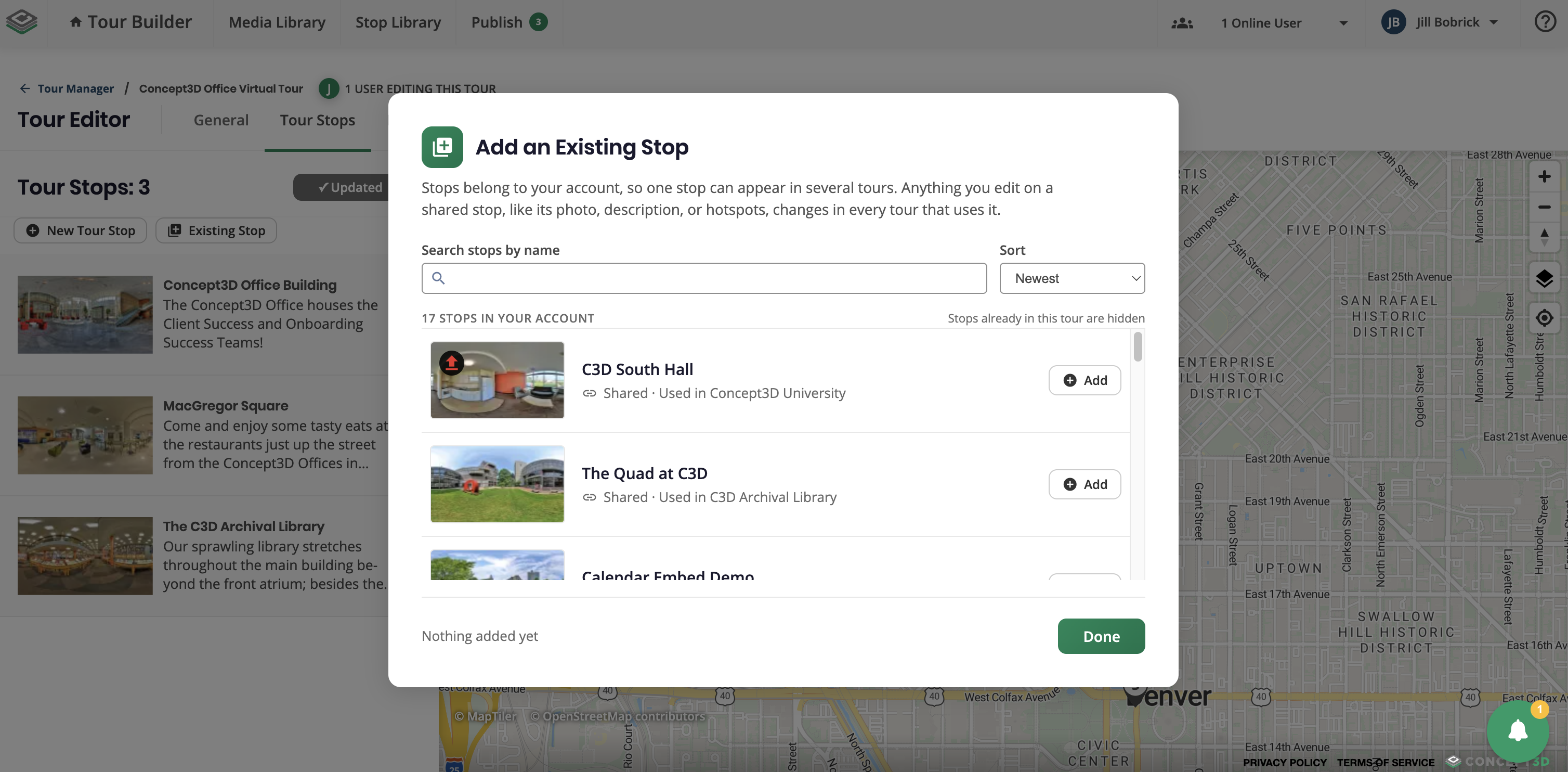
- Add a stop you already have. In the tour editor, Existing Stop now sits beside New Tour Stop. Pick any stop from your library and it is added to the end of the tour, without using another stop credit.
- Know when an edit reaches more than one tour. If a stop is used in more than one tour, the stop editor tells you: "Used in 3 tours. Editing this stop changes it in every tour that uses it," with links to those tours.
Learn more: Tour Stop Library in Tour Builder
Publish Everything from One Page
Publishing now has its own Publish tab in the header, with a count of everything waiting. Every stop and tour with unpublished changes appears in one list, and you publish or revert from there. The tour editor's Share & Publish tab is now Share.
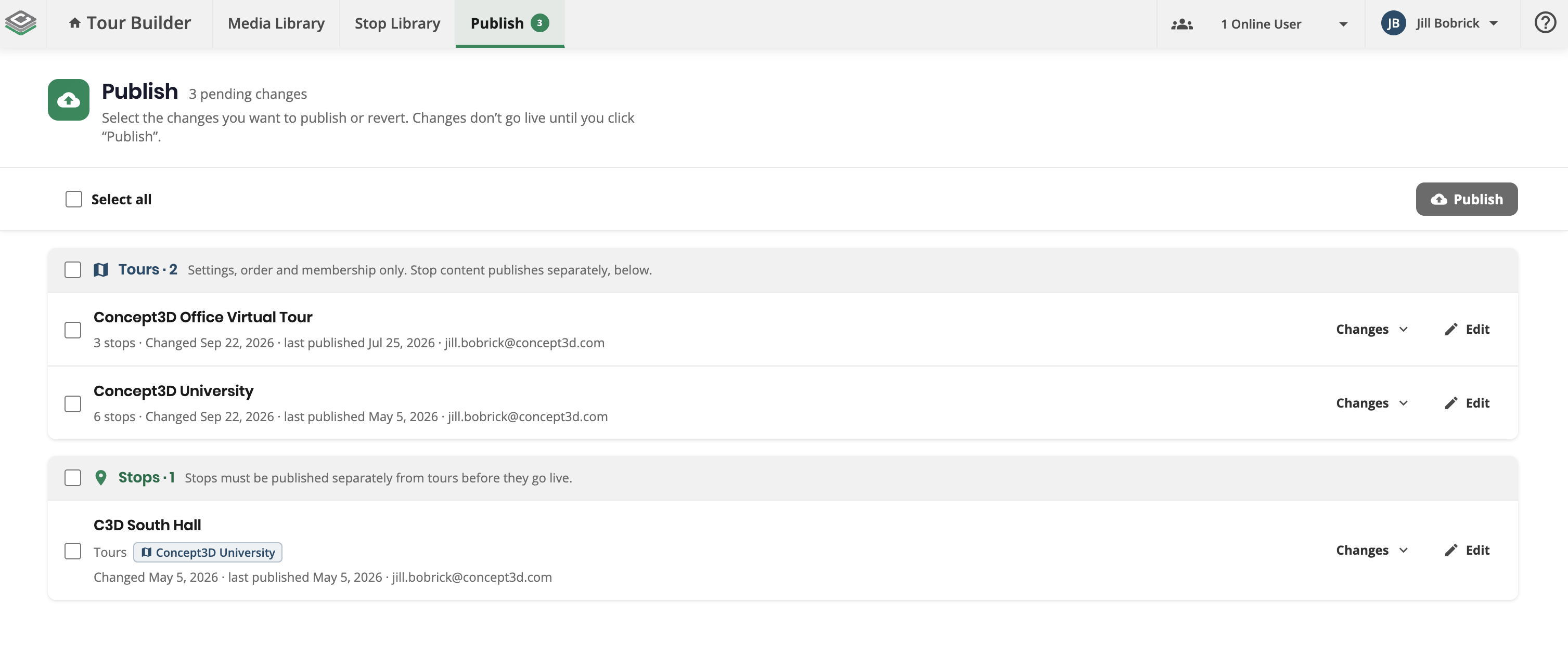
- Publish a stop to update every tour that uses it. Edit a shared stop, publish it once, and every live tour using that stop shows the change. Before you confirm, the page lists which tours will update.
- Publish a tour for tour changes. Adding, removing, or reordering stops, or changing tour settings, still means publishing the tour.
Learn more: Publishing stops and tours
Finding Your Way Around
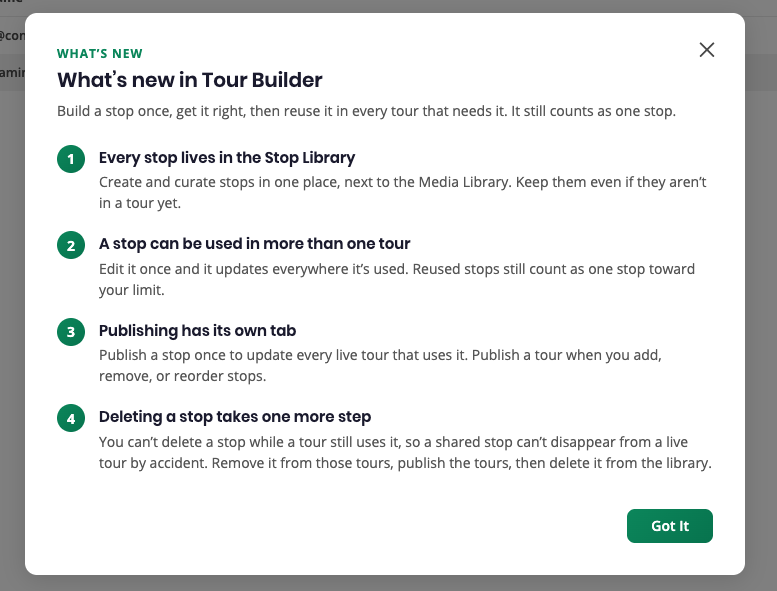
The first time you open Tour Builder after this release, a short What's new in Tour Builder dialog walks through these changes. Stop Library and Publish carry a New badge in the header for the next few months.
Additional Updates
- Refreshed Tour Builder design. Authoring screens (tour editor, home, account settings, dialogs, and the Media Library) share the same visual language as Stop Library and Publish. Media names and in-use labels now sit below the thumbnail instead of over the photo, so they are readable regardless of the image. Public tours are unchanged.
- Media Library forms. Title, alternative text, and caption labels stay visible in the upload dialog and the item detail panel, and search filters as you type.
- Stop links and forms. Visitors no longer see a stop-link hotspot, or an auto-opening form, whose target stop is not in the current tour.
Accessibility Updates
- Stop Library, Publish, and the What's new dialog are fully keyboard and screen reader accessible, with visible focus and clear accessible names throughout.