Enhanced Hotspot Label Options in 360 Tours
While an accessibility feature, this update warrants being called out on it’s own! There are now more styling options for Hotspots labels to ensure they can pass color contrast requirements!
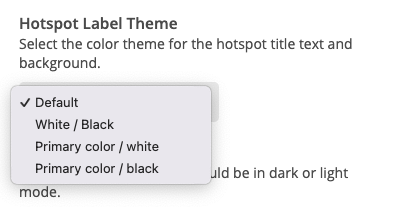
A new dropdown menu in the hotspot editor called “Hotspot Label Theme” allows you to select from four styling options:
- Default (transparent, as it was before the update)
- White/Black
- Primary Color background with White text
- Primary Color background with Black text
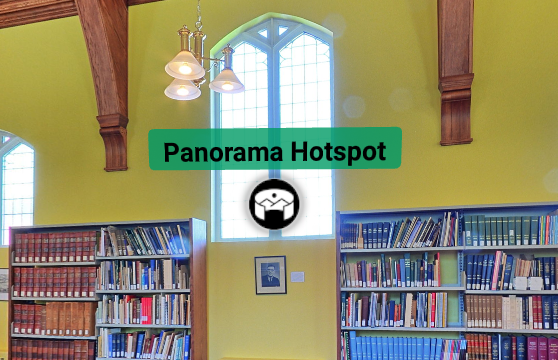
This provides more flexibility to ensure label readability, regardless of the image background.
The new label styles are available across all views, including published tours, the sample view, and preview mode. Hotspot icons also adjust between white or black for optimal contrast based on your selection.
No changes have been made to live tours and the default will still remain transparent. It is up the CMS user to select a compliant option based on the media background.
Accessibility Enhancements
We’ve improved accessibility and usability for the 360º Tour experience, particularly at higher zoom levels or on smaller screens:
- Tour Stop Galleries: Thumbnails and content now remain visible and easy to navigate even at 400% zoom.
- Layout & Controls: Content adjusts properly at 200–400% zoom, preventing overlap and ensuring all features remain accessible.
- Improved Readability: Footers, privacy policy links, and share modals stay visible and functional at all display sizes.
- Header Tags in Tour Description Editor: The tour description editor now supports adding H1 and H2 header tags, allowing users to create visually distinct headings for better organization and readability within tour descriptions.
These updates ensure full access to all tour content, meeting WCAG standards and improving the overall experience for all users.
August 14, 2025
360º Tour Feature Enhancements
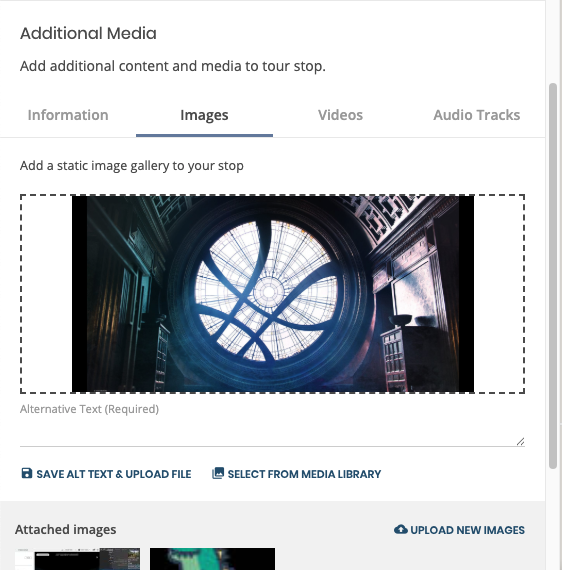
Add Alternative Text on Image Upload
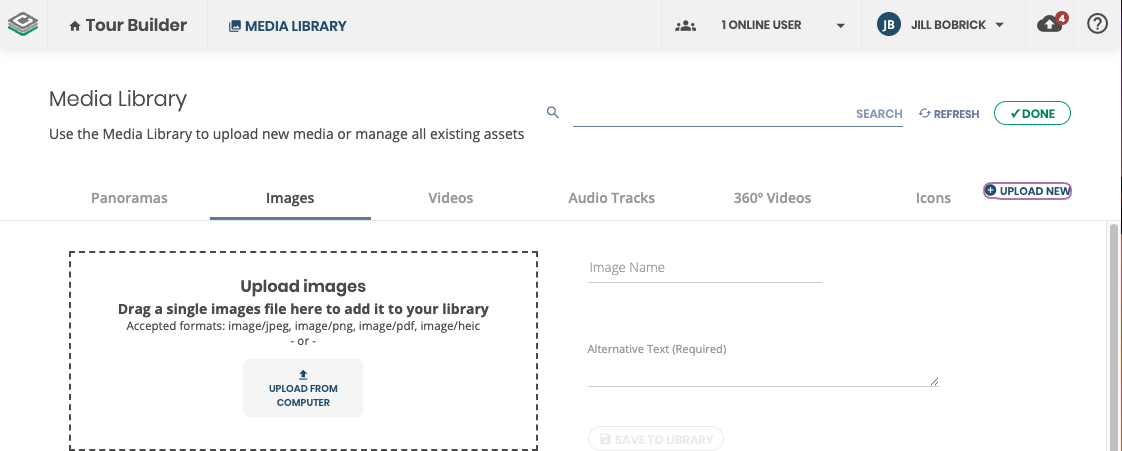
You can now add alternative text to images and panoramas directly when uploading from the tour stop editor, without needing to navigate to the media library. The new alternative text field will display below the media on upload and is required. This improves workflow efficiency and enhances accessibility support for your tours.
Accessible Pan and Zoom Controls for Panoramas and 360 Videos
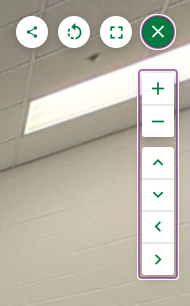
We’ve added on-screen pan and zoom controls to panoramas and 360° panoramas and videos, making it easier than ever to explore with just a single pointer—whether you’re using a mouse or touch.
These controls are also fully keyboard-accessible, with clear labels for screen readers, helping meet the latest web accessibility standards and improving the experience for users with limited dexterity.
Keyboard features include:
Enter – Open the pan & zoom controls
Arrow keys – Navigate between pan and zoom buttons
ESC – Close the controls instantly
This enhancement ensures that everyone, regardless of device or ability, can interact with this immersive content with ease.
Audio Duration Display Enhancement
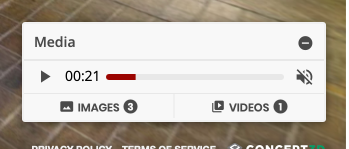
Audio playback now includes a clear text label showing elapsed time alongside the colored progress bar. This ensures users can understand audio duration without relying on color alone, improving accessibility for all listeners.
Improved Auto-Rotate Settings in 360 Tours
Your auto-rotate preference now sticks across the entire tour. Turn it on or off once, and it will stay that way as you move between stops.
- Consistent experience – No need to re-set your preference at every stop.
- Smart behavior – Dragging the panorama will automatically pause auto-rotate.
- Default fallback – If you don’t change the setting, each stop will use its original auto-rotate behavior.
This makes tours feel smoother, more predictable, and tailored to how each viewer prefers to explore.
Improved Keyboard Navigation in 360º Tour Welcome Modal
The welcome modal for the 360º Tour now includes a focus trap, ensuring that keyboard users navigating with the 'Tab' key cannot move focus outside of the modal until the tour starts. This change improves accessibility and prevents loss of focus, providing a smoother navigation experience for all users.
July 31, 2025
Improved Auto Rotate Controls for 360° Tours
Autorotate in 360° Tours now automatically stops when users navigate using the tab key or interact with the panorama by dragging it with a mouse. Autorotate can be re-enabled at any time by pressing the auto rotate button.
Alt Text Requirement for Uploaded Media via the Media Library
When uploading media to the Media Library, users are now required to enter alt text. This ensures all uploaded files have descriptive text for improved accessibility.
Improved Screen Reader Support for Panorama Tour
Screen readers now only announce relevant content when navigating the interactive panorama tour. Unnecessary information, such as technical titles and hidden elements, is no longer read aloud, providing a smoother and less confusing experience for users who rely on assistive technology.
July 11, 2025
Accessibility Improvements
We’ve made several updates to improve accessibility for users who rely on screen readers and assistive technologies:
Improved Labeling for "More Options" Button (Mobile): The "More options" button on mobile devices now announces the correct label, rather than reading out a confusing icon name. This helps screen reader users better understand what the button does.
Clearer Navigation Button Labels: The 'Back' and 'Show All Stops' buttons now use accessible labels that match what’s shown on screen.
Descriptive Text for Tour Logos: Logos now include more helpful descriptions for screen readers—such as "TOUR NAME logo" or "TOUR NAME homepage." Admins can also add custom descriptions in the 360º Tour Builder, with guidance to keep text concise and helpful.
Better Structure on Unsupported Browser Page: We’ve added proper headings and structure to the unsupported browser page, making it easier for screen readers to interpret and navigate the content.