October 13, 2026
New Features
Duplicate Stop Option
You can now start a new stop from an existing one instead of rebuilding it.
- Choose Duplicate stop from the new Actions menu in the Stop Library.
- Select Duplicate on a stop card in a tour's stop list.
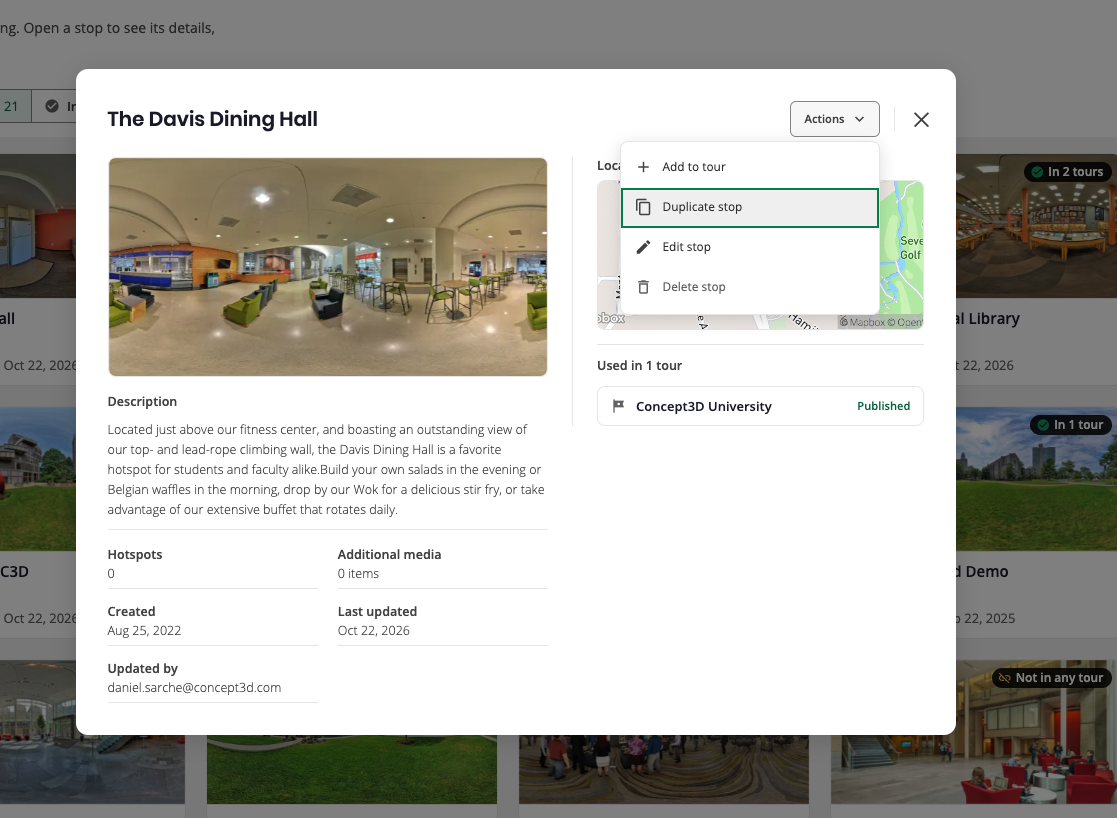
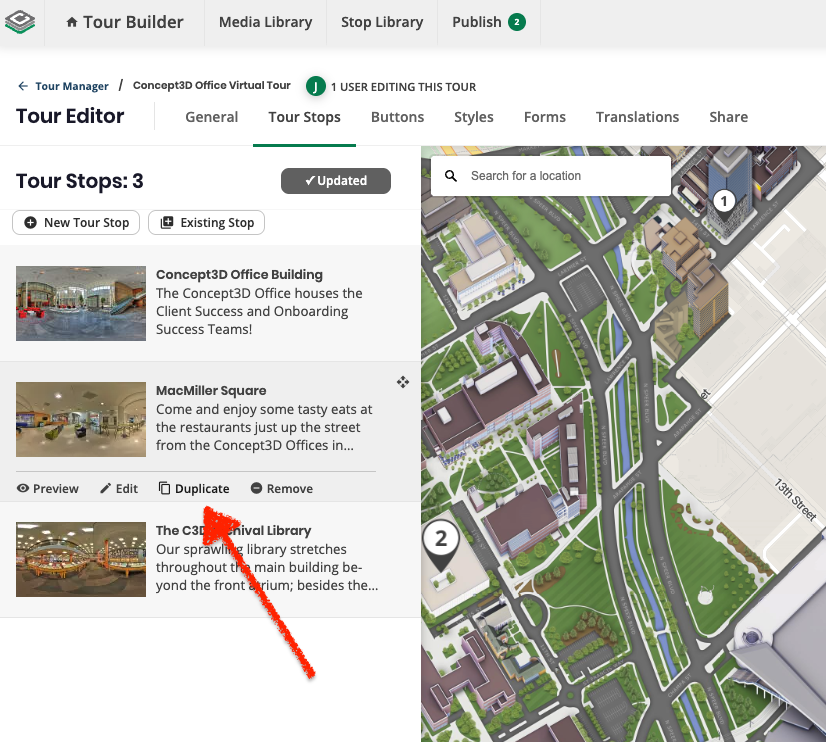
The copy keeps the original's media, hotspots, description, audio, and translations, and you can change it without affecting the original. It stays unpublished until you publish it.
- Destination: Save the copy to the Stop Library, to the current tour (right after the original), or to a different tour.
- Stop credits: Each copy uses one account stop credit. Adding it to a tour also uses one of that tour's stop slots.
- Hotspot links: Hotspots that link to other stops still go to those stops, not to the copy.
Feature Enhancements
Easier Stop Reuse Across Tours
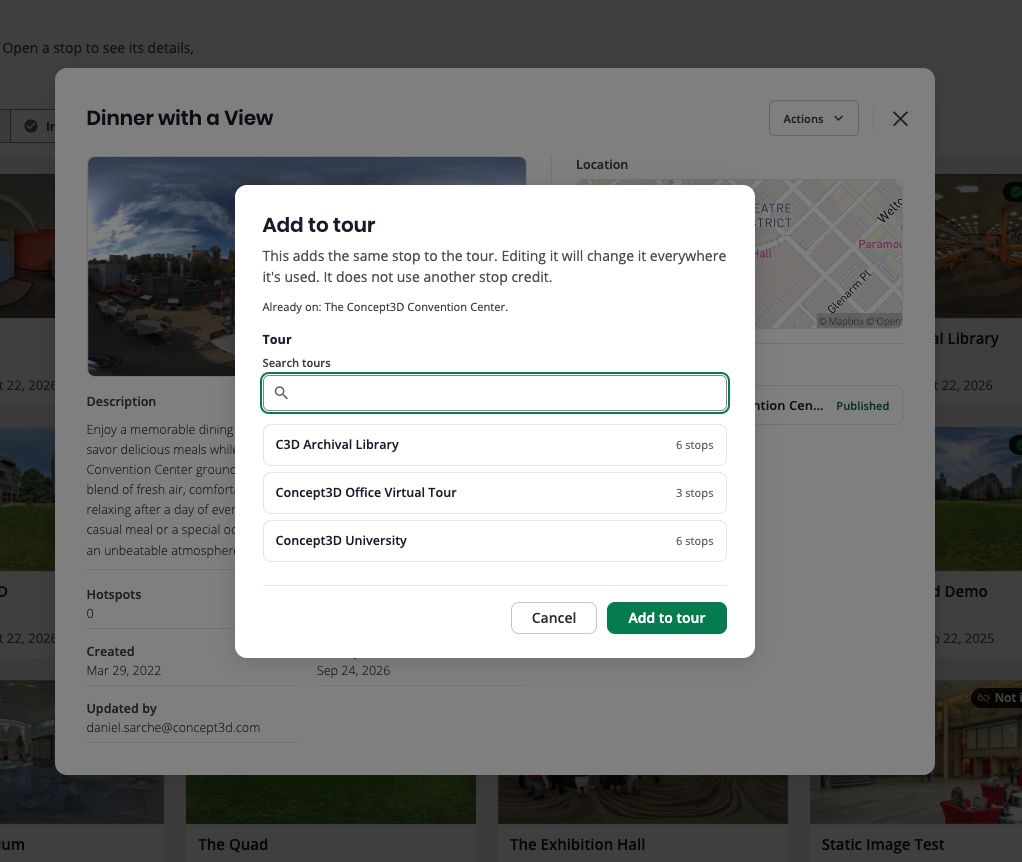
You can now put a stop you've already built on another tour without leaving the Stop Library. Choose Add to tour from the Actions menu and pick a tour. It's the same stop, so it doesn't use another stop credit, and your edits show everywhere it's used. Add to tour also appears on the bar shown right after you create a stop in the Stop Library.
- Already on: The dialog lists the tours that already include the stop and leaves them out of the picker.
- Actions menu: Edit stop and Delete stop for Stop Library stops have moved into the Actions menu.
Additional Updates
- Share tab unpublished alert: An alert on the Share tab now tells you when a published tour has changes visitors can't see yet. Users who can publish also get a Go to Publish link.
- Stop limit on the after-save bar: When your account reaches its stop limit, Create another stop stays visible but greyed out, with a note explaining why.