Multi-language support for 360 Tours allows you to create inclusive, accessible tours for a global audience. By enabling translations, visitors can view your tour in their preferred language using a built-in language selector—without ever leaving the page.
This feature ensures that your entire tour experience carries across languages, including tour descriptions, stops, hotspots, buttons, and even audio and transcripts. Whether you’re translating manually, using AI, or working with a professional translator, Tour Builder provides flexible tools to manage it all.
Note: Multi-language support is an advanced feature that requires purchase. To enable it, contact support@concept3d.com.
This article walks through how to:
- Add and enable languages
- Navigate the translation editor
- Translate content (text and audio)
- Export translations for external use
- Publish and verify translations
For AI-powered translation, see: Auto-Translate Tour Content with AI
Supported Languages
Tour Builder currently supports the following languages for multi-language translations:
- Chinese (Simplified)
- Chinese (Traditional)
- Dutch
- French
- German
- Japanese
- Korean
- Spanish
Note: This list may expand over time. Always check the + Add Language dialog in the Translations tab for the most up-to-date options. Want a language added? Let us know!
What Visitors See
Visitors will be able to easily select which language they would like to see the 360° Tours content in using the dropdown options.
What Can Be Translated
The Translations tab supports translation for the following content types:
| Content Type | Translatable Fields |
|---|---|
| Tour | Name, Description |
| Tour Stops | Name, Description |
| Hotspots | Name |
| Hotspots (Text type) | Name, Content |
| Buttons (Standard) | Title |
| Buttons (Dropdown) | Title, Dropdown option names |
| Audio | Audio files, Audio transcripts |
Set Up Multi-Language Translations
Add a Language to a Tour
- Log in to tour.concept3d.com.
- Hover over the tour and select Edit Tour.
- In the Tour Editor, select the Translations tab.
- Select +Add Language. A dialog appears listing available languages.
- Select the languages to add, then confirm.
- Each added language appears in the Manage Languages panel with a toggle and an Edit button.
Enable a Language
Adding a language does not make it visible to visitors. Each language has two states that must both be true for translations to appear on the live tour:
- Enabled: Controls whether the language appears in the visitor-facing language selector. Use the toggle next to each language to turn this on or off.
- Published: After saving translations, open Publish in the Tour Builder header. Publish the affected tour and any stops whose translated content changed to push those changes live.
A language can be added and edited over time while remaining disabled, which is useful for preparing translations before making them publicly available.
Navigate the Translation Editor
After selecting Edit next to a language, the translation editor opens in a side-by-side view. The left panel shows the original English content, and the right panel provides fields for the translated content.
A tree navigation on the left side organizes all translatable content into sections:
- General: Tour-level name and description
- Tour Stops: Expandable list of each tour stop, with nested hotspots listed beneath their parent stop
- Buttons: Each button in the tour, including dropdown buttons and their options
Shared-stop note: Translations for a shared stop are still edited from a tour translation screen, not from Stop Library. Editing a translation from one tour updates that shared stop wherever it is used.
Select any item in the tree to load its translatable fields in the editor.
Translate Content Manually
- In the translation editor, select an item from the tree navigation (for example, a tour stop).
- The right panel displays empty fields for the translated version of each translatable field (name, description, etc.).
- Enter the translated text in each field. For text-type hotspots, a rich text editor is available for HTML content.
- Repeat for each item in the tree.
- Select Save when finished, or continue editing other items.
For tours with many stops, hotspots, and buttons, consider using the Translate All bulk AI translation feature to generate a first pass, then review and refine manually. See Auto-Translate Tour Content with AI for details.
Translate Audio and Transcripts
Tour stops and hotspots that include audio can also have translated audio files and transcripts.
- Select a tour stop or hotspot in the tree navigation.
- In the translation editor, scroll to the audio section.
- Upload or select a translated audio file from the Media Library.
- If the original audio includes a transcript, enter the translated transcript in the transcript field.
Translated audio files play automatically when a visitor views the tour in that language. If no translated audio is provided, the tour will fall back to the default language audio.
Download Translations as CSV
All translatable text content can be downloaded as a CSV file, which is useful for sharing with an external translator or translation service.
- In the Translations tab, select the download icon or Download option in the Manage Translations panel.
- The CSV includes the original English text alongside columns for each added language.
- After the translator completes the file, use the translation editor to enter the translated content.
Publish and Verify Translations
- After entering translations, open Publish in the Tour Builder header.
- Select the affected tour and any stops whose translated content changed, then select Publish to push those changes live.
- Verify the published tour by selecting a language from the visitor-facing language dropdown.
Use Changes on a Publish row to review what will go live before you confirm.
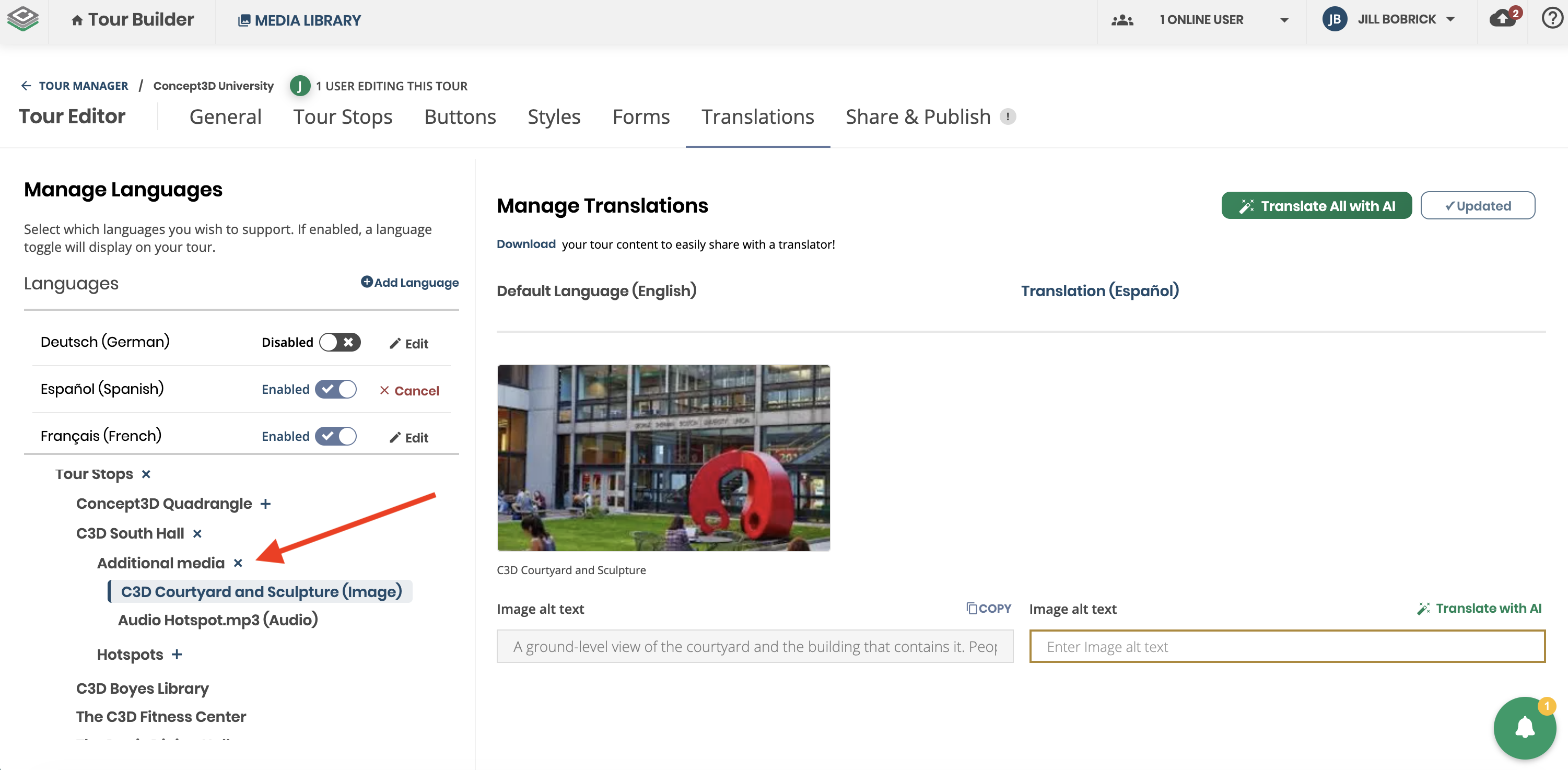
Translate alternative text on stops, hotspots, and tour logos
Tour authors can now translate alternative text alongside the rest of their tour content, closing a long-standing accessibility gap for multilingual tours. Previously, alt text on shared library images and panos was only available in the account's default language even when the rest of the tour was fully translated. Now, translated alt text is delivered to assistive technology in the active published language, falling back to the default-language value when a translation is not provided.
- Stops: Translate alternative text for each stop's main image or pano media inside the Stops translation UI.
- Hotspots: When hotspot translations are enabled, translate alt text on image and pano hotspots from the Hotspots translation UI.
- General (logo): When a tour has a logo, translate the logo alt text on the General translation tab.
- CSV export: Translated alt text is included in the translation CSV for bulk authoring.
- Reuse hint: When the same media asset appears in multiple places, authors see a hint that an alt text edit may apply everywhere that asset is used.
Tips for Success
- Enable and Publish are separate steps. A translation will not appear on the live tour until the language is toggled to Enabled and the affected tour and translated stops are published from the header Publish page. This allows editing translations over time without affecting the live tour.
-
Share a tour in a specific language. Add a language code to the tour URL to link directly to a specific language version. For example:
tour.concept3d.com/es/share/12345loads the tour in Spanish. Supported codes includees(Spanish),fr(French),de(German),ja(Japanese),ko(Korean),nl(Dutch),zh(Chinese). - Use CSV export for large translation projects. Download the CSV, send it to a professional translator, then use the editor to enter the completed translations. This is especially helpful for tours with many stops.
- Use Revert selected with caution. Reverting on the Publish page discards the selected unpublished changes and restores their last live versions.
- AI translation can speed up the process. Use the per-field or bulk Translate All options to generate a first draft, then review for accuracy.