Translating a tour with many stops, hotspots, and buttons can be time-consuming when done manually. AI Translation in Tour Builder generates translations automatically, giving administrators a working first draft in seconds instead of hours. Translations can be generated one field at a time or across an entire tour in a single action.
AI Translation works alongside the manual translation editor. Use it to generate a starting point, then review and refine the output for accuracy, tone, and terminology that is specific to the organization. For a full overview of multi-language support, including how to add languages and navigate the translation editor, see Advanced Feature: Multi-Languages
Translate a Single Field
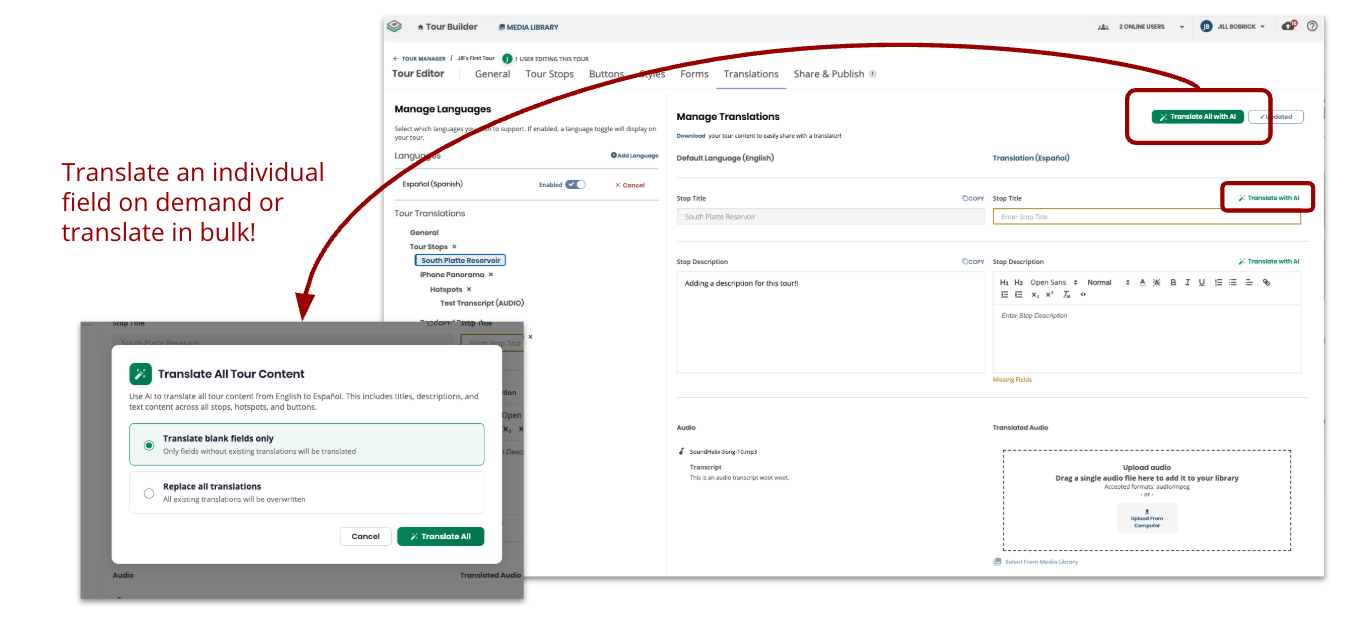
Each translatable text field in the translation editor includes a Translate with AI button. This is useful for translating individual fields as needed, or for re-translating a specific field after updating the English source content.
- Open the translation editor by selecting Edit next to a language on the Translations tab.
- Select an item from the tree navigation (for example, a tour stop).
- Next to any text field in the translation panel, select Translate with AI.
- The AI generates a translation based on the English source text and populates the field.
- Review the translation and make any manual adjustments.
- Repeat for additional fields as needed.
The original English content remains unchanged. Only the translation field is populated.
Translate an Entire Tour
The Translate All button in the translation editor header translates all translatable text content across the tour in one action. This includes tour name and description, tour stop names and descriptions, hotspot names and text content, button titles, dropdown option names, and audio transcripts.
- Open the translation editor for a language.
- Select Translate All in the header.
- A dialog appears with two options:
- Blank fields only: Translates only fields that do not already have a translation. Existing translations are left unchanged.
- Replace all: Re-translates every field, overwriting any existing translations.
- Select the preferred option. If Replace all is selected, a confirmation dialog appears before proceeding.
- The AI processes all translatable content. Depending on the size of the tour, this may take a few moments.
- Review the generated translations across the tree navigation and make any manual adjustments.
When to Use Each Option
Blank fields only is the safer choice for most situations. It fills in gaps without overwriting work that has already been reviewed or manually edited. This is especially useful when new stops or hotspots have been added to a tour that already has translations in progress.
Replace all is useful when the English source content has changed significantly and all translations need to be regenerated from scratch. Because this overwrites existing translations, it should be used with care.
AI-Powered Tour Translation
The 360° Tour Builder now includes built-in AI translation, making it easier than ever to offer multilingual tour experiences. Translating tour content has traditionally been one of the most time-consuming and costly steps in launching a multilingual tour. With AI translation, what once took hours of manual work can now be done in minutes.
When editing a tour's translations, each translatable field (title, description, and hotspots) now has a "Translate with AI" button that automatically generates a translation from English into the selected language.
Taking it a step further, the "Translate All with AI" button in the header lets editors translate every field at once with a single click. Editors can choose to fill only empty fields or replace all existing translations, making it easy to either start fresh or ensure everything is up to date after content changes. A confirmation step and progress indicator keep editors informed throughout the process. All translated content remains fully editable, and a disclaimer reminds editors that AI-generated translations should be reviewed before publishing.
Tips for Success
- Always review AI-generated translations. AI translation provides a strong starting point, but may not capture institution-specific terminology, proper nouns, or nuanced phrasing. A native speaker review is recommended before publishing.
- Use "Blank fields only" as the default. This preserves any manual edits or reviewed translations and only fills in what is missing. Reserve "Replace all" for cases where the source content has changed substantially.
- Combine AI and manual translation. Use Translate All to generate a first pass across the entire tour, then walk through the tree navigation to review and refine individual fields. The per-field Translate with AI button is useful for re-translating specific fields after making changes to the English source.
- Translate All does not generate audio files. AI Translation handles text content and transcripts, but translated audio recordings need to be created and uploaded separately through the Media Library.
- Publish when ready. AI-generated translations are drafts until you open Publish in the Tour Builder header. Publish the affected tour and any stops whose translated content changed, then make sure the language is Enabled.