Wayfinding directions in Concept3D maps default to the closest location, which can sometimes send visitors to a parking area that isn’t ideal (such as a staff-only or restricted lot). To improve the visitor experience, you can designate a preferred parking lot for a destination.
When a preferred parking lot is set, Concept3D’s wayfinding will guide users to the correct place to park before continuing on to their final destination.
This article explains how to assign a preferred parking lot using the Map Editor so directions reflect where visitors should actually park.
Step-by-Step: Assigning a Preferred Parking Lot
1. Find the Destination Location
- Open the Map CMS.
Search for the Location or select Edit next to the Location in the sidebar.
2. Edit the Location Details
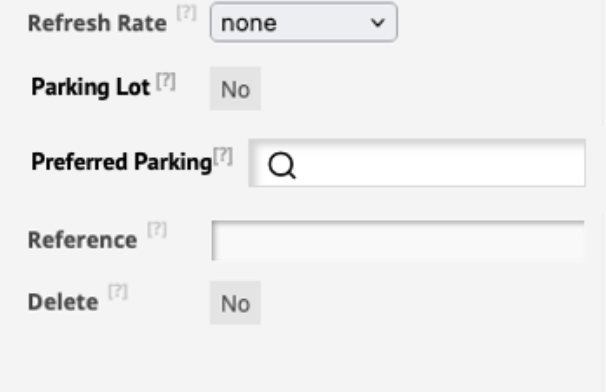
- After selecting Edit, scroll to the setting labeled Preferred Parking Lot.
This setting allows you to override the default parking behavior for wayfinding.
3. Choose a Preferred Parking Lot
- Open the Preferred Parking Lot dropdown.
- Select the parking lot you want visitors to use (for example, Holly Lot or Juniper Lot).
Only locations that are marked as Parking will appear in this list.
4. Make Sure the Parking Lot Is Marked Correctly
If the parking lot you want doesn’t appear:
- Locate the parking lot on the map.
- Edit that location.
- Set its location type to Parking (instead of Standard).
- Save your changes.
Once a location is marked as a parking lot, it will be available to assign as a preferred parking option.
5. Publish Your Changes
After assigning the preferred parking lot, publish your updates. Publishing ensures the changes are reflected in live wayfinding directions.
6. Test the Updated Wayfinding
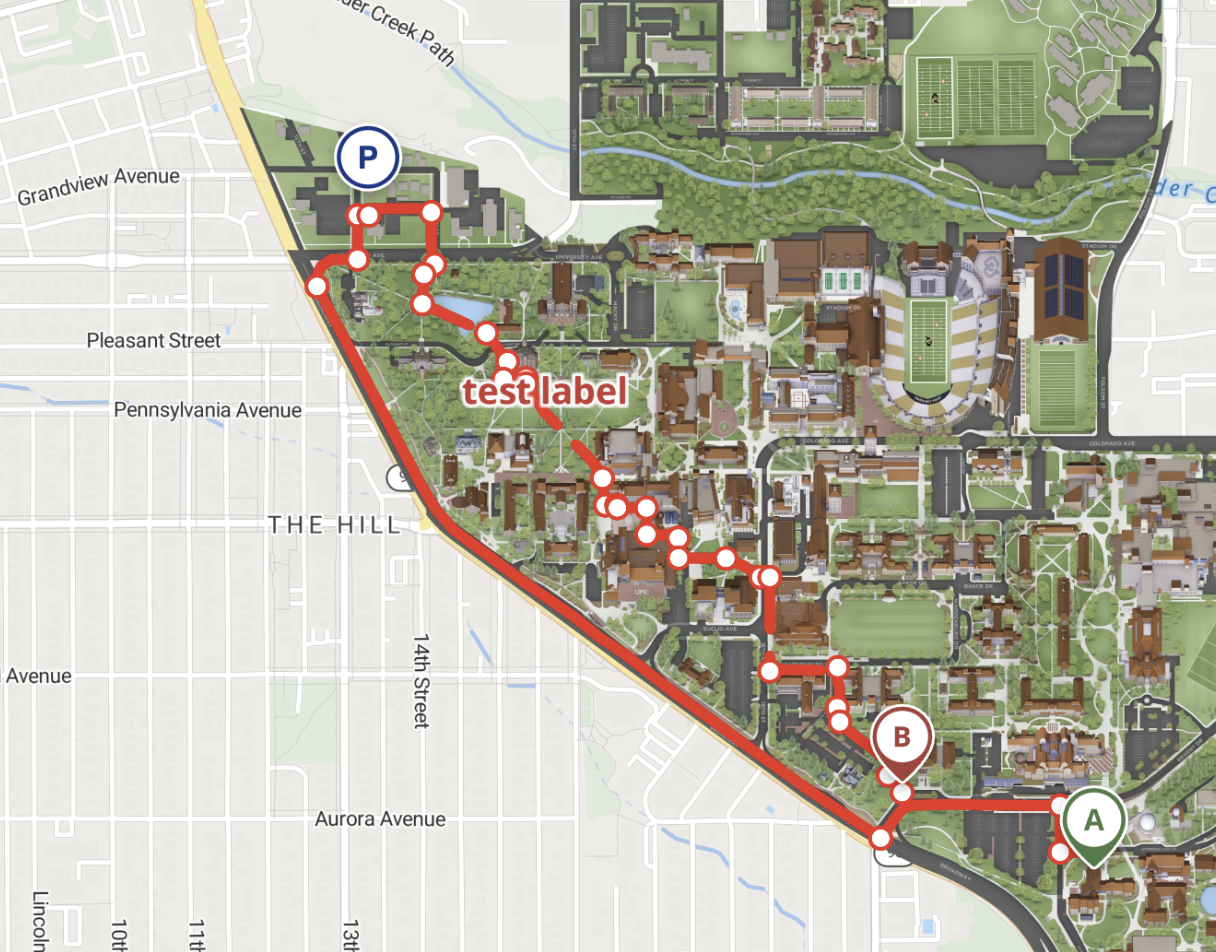
- Get directions to the destination from a starting point.
- Confirm that the route now directs users to the selected parking lot before continuing to the destination.
Even if the route itself isn’t perfect on a test map, the key thing to verify is the parking destination.
Tips for Success
- Think like a visitor: Choose parking lots that are intended for guests, not staff-only or restricted areas.
- Label parking clearly: Consistently mark all parking areas as Parking locations so they’re easy to manage and reuse.
- Test before rolling out: Whenever possible, test changes in a revision before publishing to live users.
- Use this for common pain points: This feature is especially helpful for campuses, hospitals, or large venues where buildings sit near multiple parking options.
By setting a preferred parking lot, you can ensure visitors start their journey on the right foot—and in the right place.