June 17, 2026
New Features
Bulk Import Buildings and Spaces
Facilities Managers can now set up their buildings and spaces in bulk using a downloadable CSV template, rather than adding them one by one. The template is tailored to each platform and includes columns for Space Capabilities — the amenities and attributes that help reservers find the right space. Some additional features with this release:
- Admins can enter a building's street address and Room Reservations will automatically place it on the map, no coordinates needed.
- Before import, the system checks the file for errors and surfaces any issues so admins can correct them upfront.
- Guidance on the Bulk Import page walks admins through exactly what values are accepted for each Space Capability.
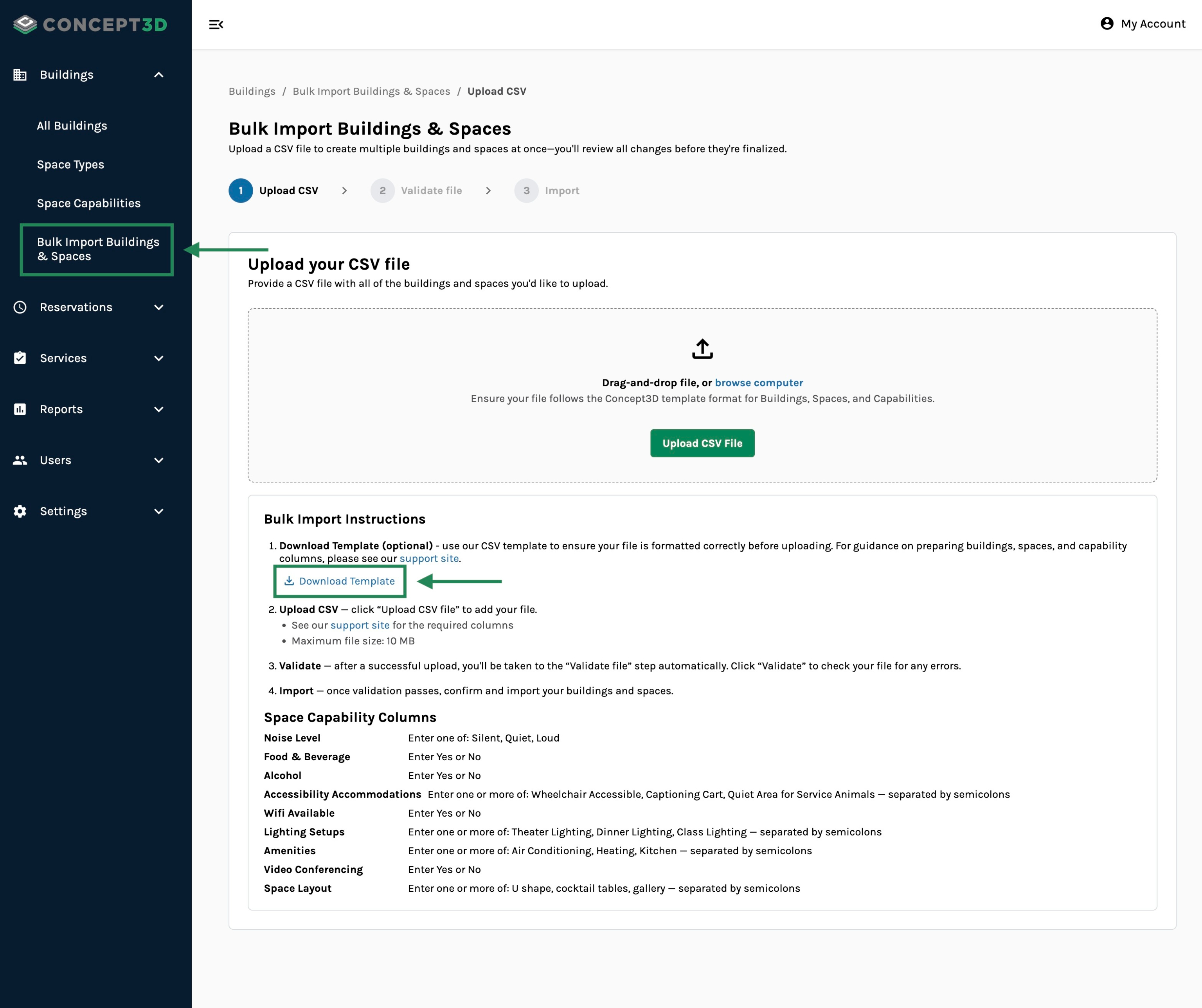
Download the personalized template for your institution while bulk importing buildings and spaces.
Localist Integration Improvements
Room Reservations and Localist Events are now more tightly connected across the reservation workflow. Reservers and Event Coordinators can now create a Localist event directly from an existing reservation or reservation group — even after the reservation has already been saved — giving teams the flexibility to link events at any point in the process.
Additionally, multi-date and recurring reservation groups linked to Localist now display associated event data in a single organized view, and the Dates & Times table for multi-event groups has been reorganized for clearer navigation.
See our support site for more details regarding how to use this updated integration!
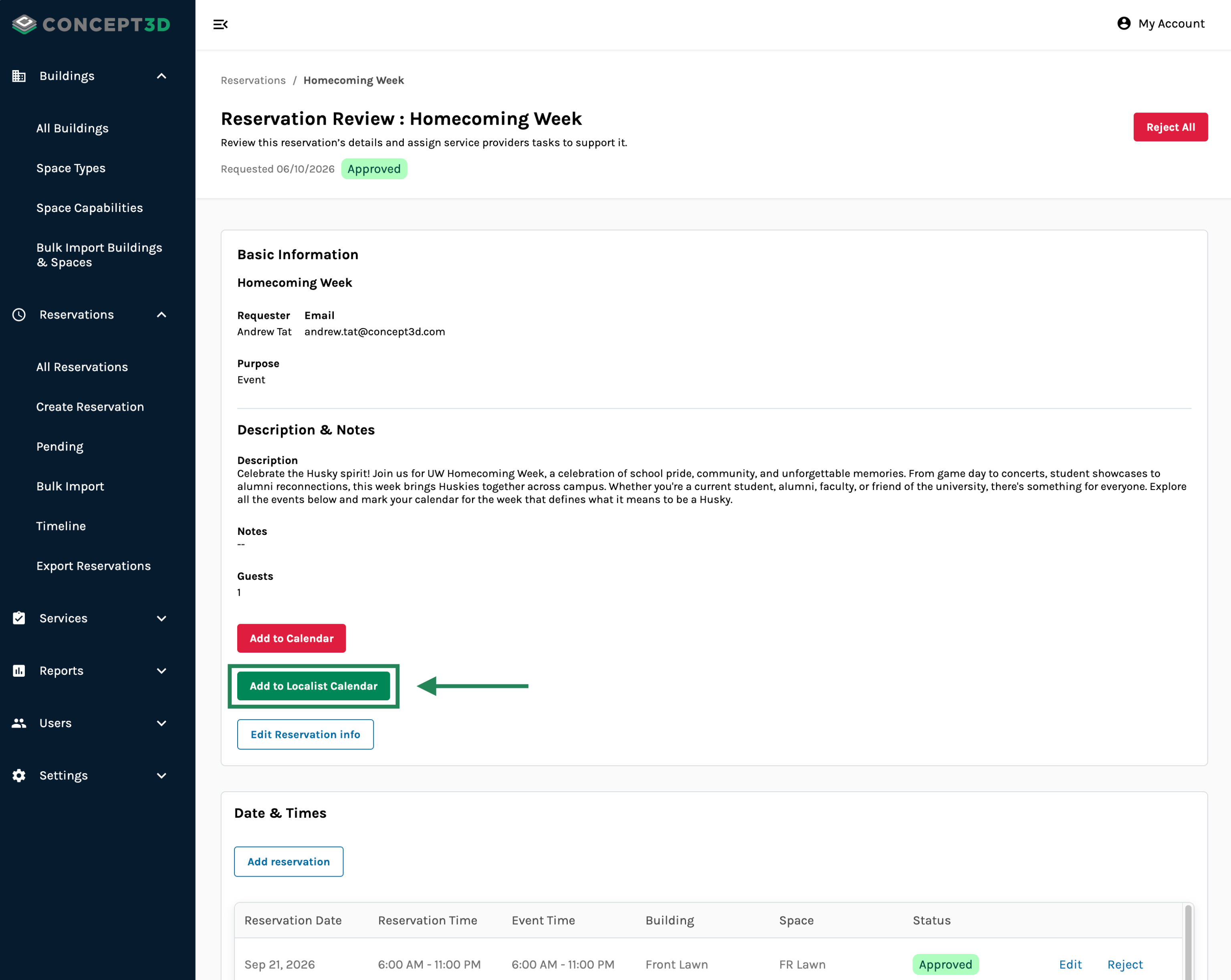
You can now create Localist events after finalizing the reservation details first.
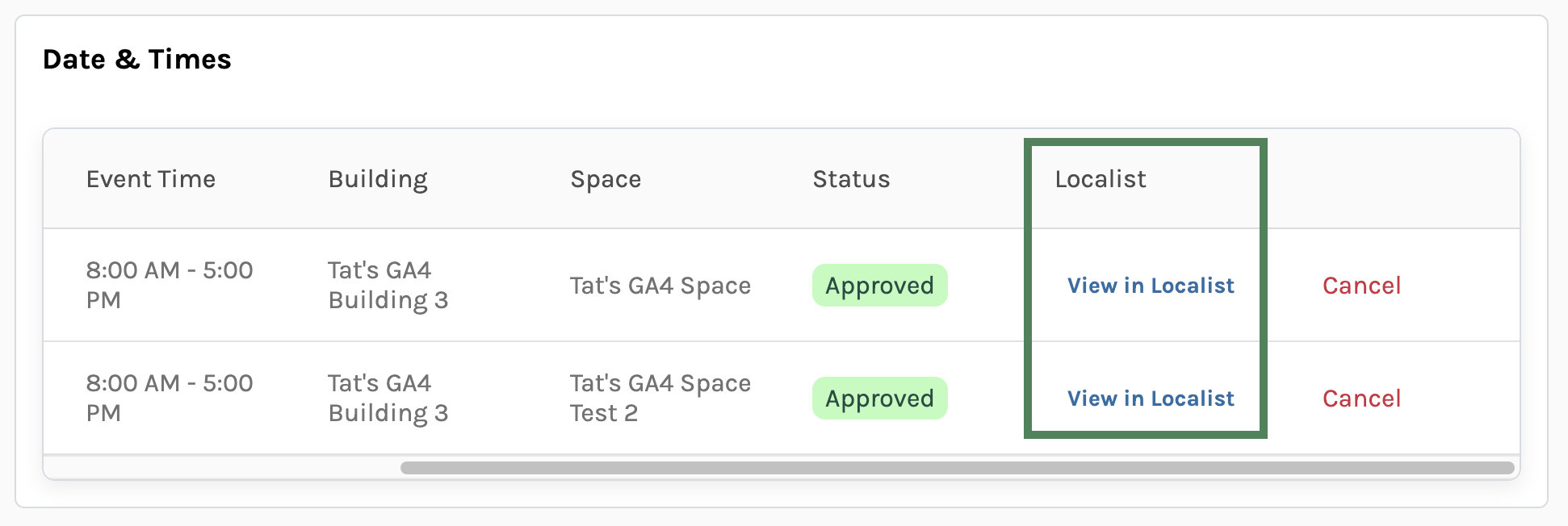
Easily find the linked Localist events under the Date & Times table for reservations.
Accessibility Updates
Calendar Timeline keyboard navigation — The reservation calendar and timeline views for both admins and reservers have been fully rebuilt with accessibility in mind. The calendar is now fully keyboard navigable, with improved focus indicators, ARIA attributes throughout, and screen reader announcements for calendar state changes.
Usability Updates
- Map: filter by current view — Reservers can now click "Search this area" to filter the sidebar results list to only show spaces visible in the current map view.
- Map: hover highlight — Hovering over a space in the sidebar now highlights the corresponding pin on the map, making it easier to locate a space visually.
- Custom Questions reordering — Admins can now reorder the display order of Custom Questions, as well as the order of values within each question.
- Admin Reservations Table defaults — The Admin > All Reservations table now defaults to showing future reservations, and columns have been reordered to lead with the reservation date for quicker scanning.
- Reservation additional notes character limit increased — The additional notes field on a reservation now supports up to 2,000 characters (previously 1,000).
- Space approver cancellation notification — Space approvers now receive an email when a previously approved reservation is cancelled by the Reserver.
- Reservation group occurrence cap raised — The maximum number of occurrences in a reservation group has been raised from 100 to 200, supporting groups that span up to approximately six months.
- Time entry field — The time input when creating or editing a reservation is now a smart text field rather than a dropdown. It accepts multiple time formats including 12-hour and 24-hour time, making it faster and more flexible to enter start and end times.
- Recurring invoice line item summarization — Invoices for recurring reservation groups now collapse all occurrences into a single summary line item showing the date range, occurrence count, and total — instead of listing every individual date as a separate row.
- Platform mailing address in emails — Platform admins can now set a mailing address for their platform in Platform Settings. Once set, the address appears in outbound transactional emails, giving recipients a clear institutional contact point.
- Operation Schedule Report extended to 12 months — The date range for the Operation Schedule Report has been extended from 3 months to 12 months, giving admins a fuller view of scheduled operations in a single report.
May 7, 2026
New Features
Interactive Map Integration — Concept3D Renderings & Space Filtering
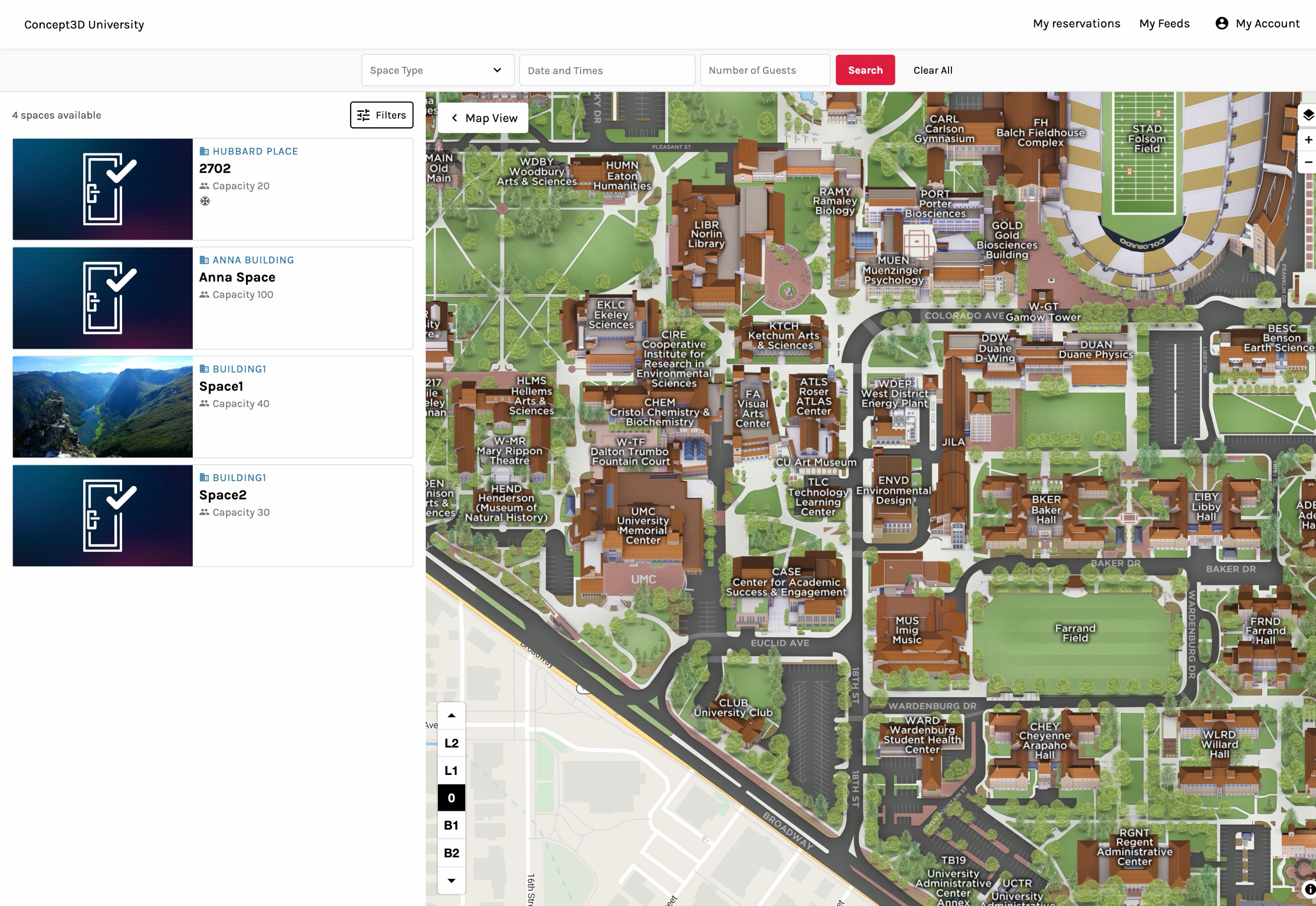
Room Reservations now displays Concept3D's Interactive Map renderings in the space browsing experience. Reservers can view exterior and interior renderings for buildings and spaces, navigate between floor levels, and toggle between standard map and satellite views.
Additional map improvements included in these releases:
- Reservers can now filter by more than one Space Type at a time.
- Platform admins can link a Room Reservations space to its corresponding location on a Concept3D interactive map.
Localist Events Integration — Multi-Date Reservation Syncing
Reservations that are part of a multi-date or recurring group now stay in sync with their linked Localist events. When creating a multi-date reservation, reservers can:
- Create separate Localist event instances
- Link an existing Localist event
- Resolve any date mismatches between Room Reservations and Localist before confirming
Changes made after creation — including admin edits, new reservations added to an existing group, and individual cancellations — are automatically reflected in Localist, keeping both platforms aligned without manual follow-up.
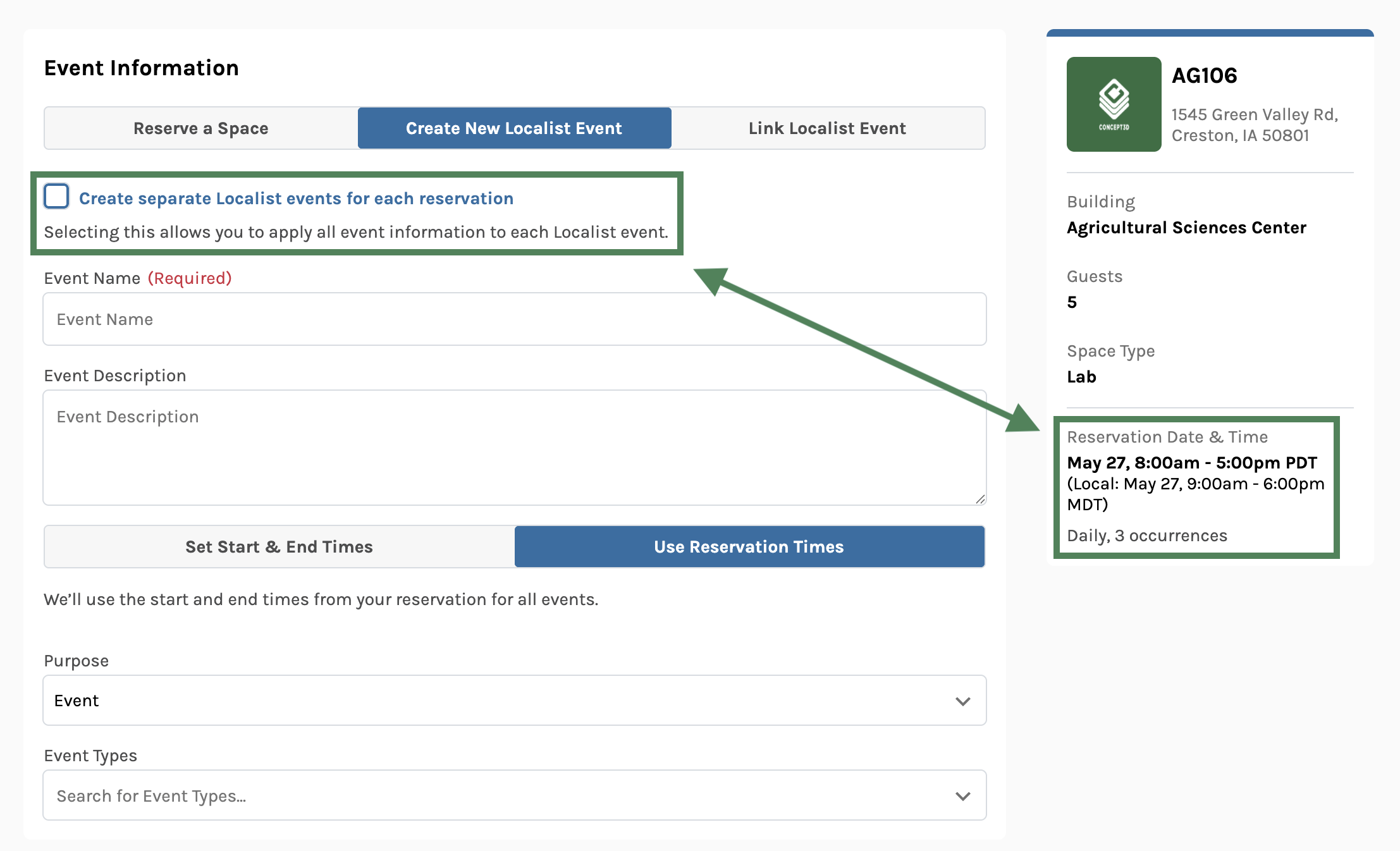
Groups with multiple reservations can create either a single Localist event with multiple instances, or multiple separate Localist events
Add to Calendar
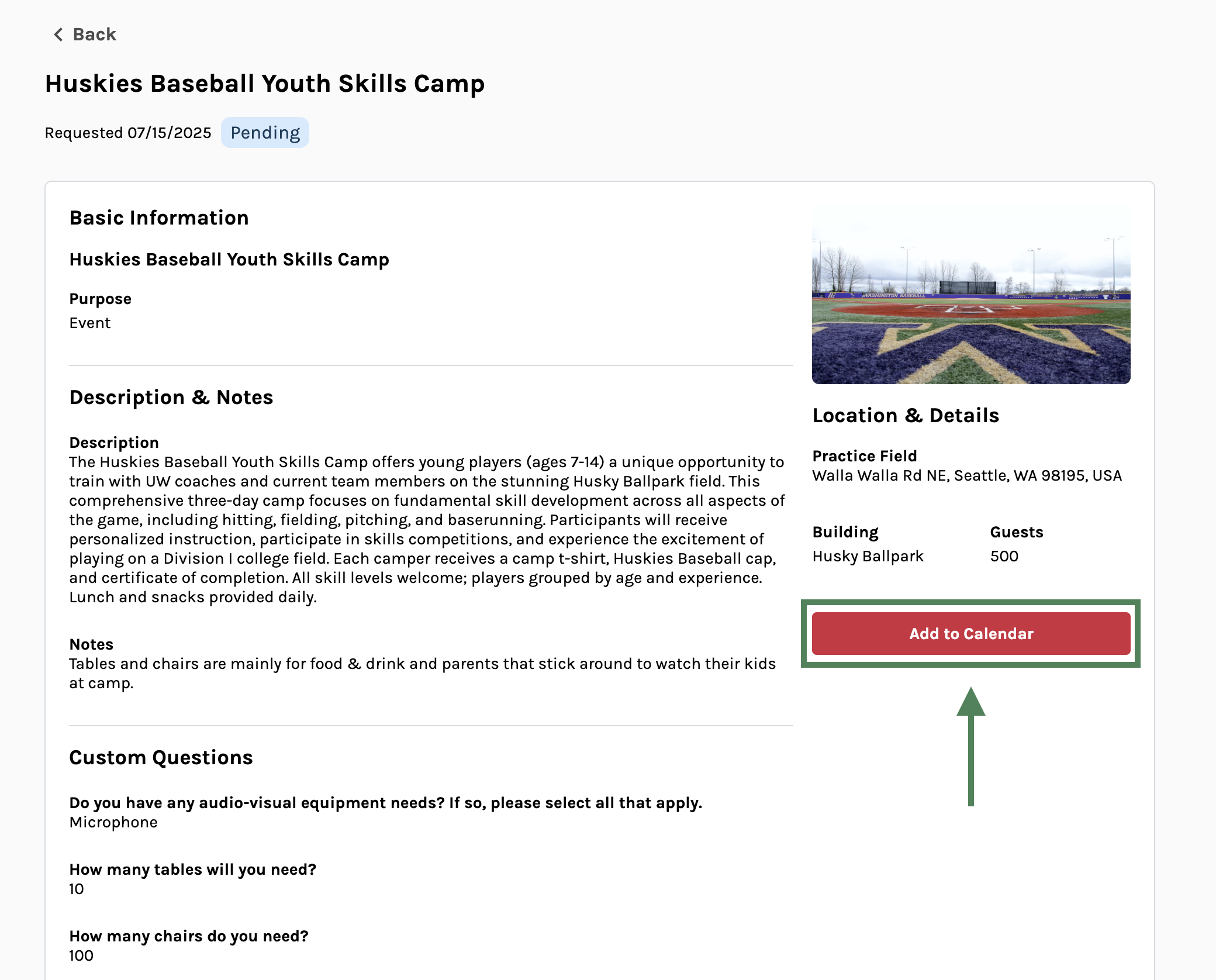
Reservers and event coordinators can now add a reservation to their personal calendar from multiple pages, such as:
- Reservation details page via a new "Add to Calendar" button
- Reservation confirmation email
- New reservation request approval email (for event coordinators)
April 21, 2026
New Features
File Upload Custom Questions
Admins can now create a "File Upload" custom question type, allowing reservers to submit documents like Certificates of Insurance, floor plans, or other supporting files as part of the reservation request. Admins configure which file categories to accept:
- Images (PNG, JPG, GIF, WEBP)
- Documents (PDF, DOCX, DOC, PPTX, PPT, TXT)
- Both
and whether the upload is required or optional. Reservers upload files via a drag-and-drop interface with a 10 MB size limit.
After submission, uploaded files are accessible throughout the reservation lifecycle:
- Admins can download, replace, or delete uploaded files from the reservation review page
- Reservers can manage their own uploaded files from My Reservations
When a custom question is deleted, the question no longer appears on new reservation forms, but historical answers and uploaded files on past reservations are preserved and remain accessible.
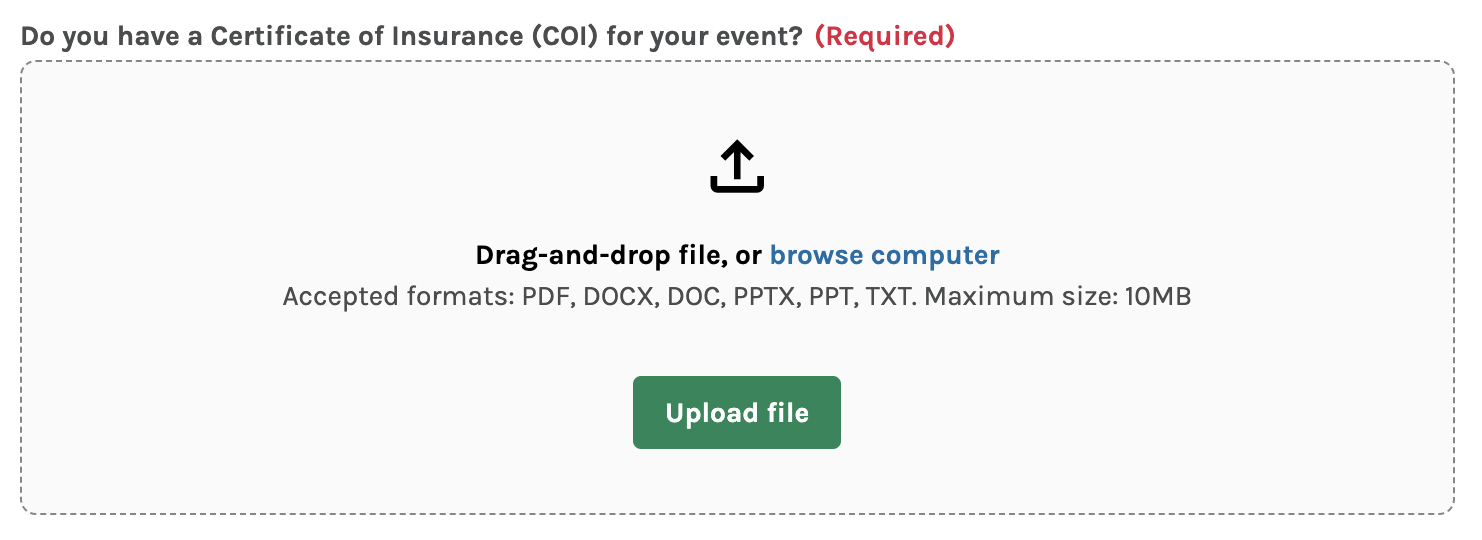
Reservers and Admin can upload files during the request process or while reviewing the reservation after the fact.
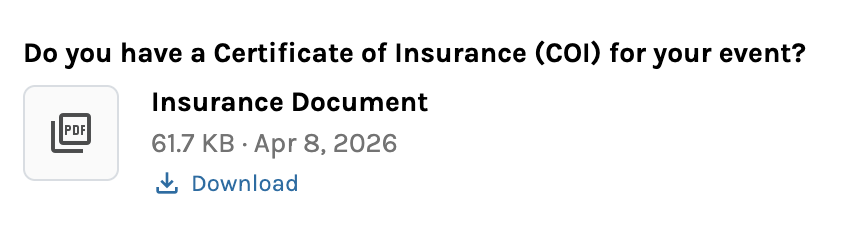
Reservers and Admins can download the uploaded file from the reservation.
Reservation Rejection Reasons
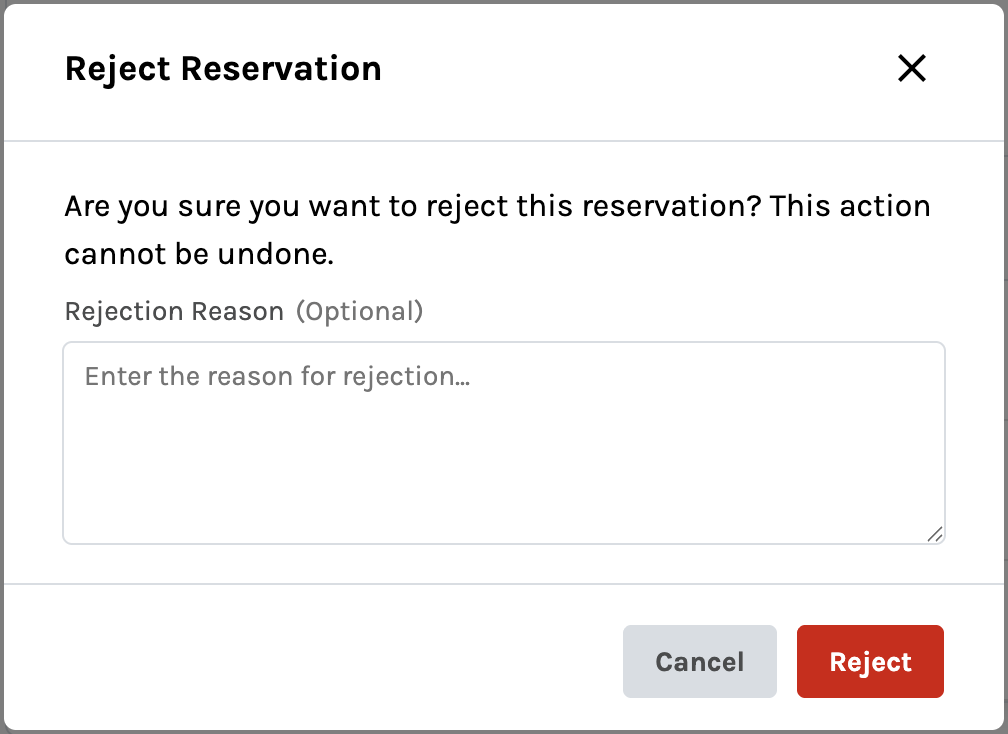
Event Coordinators can now provide a rejection reason when rejecting a reservation or an entire reservation group. After clicking Reject, a modal prompts the coordinator to optionally enter a reason. The rejection reason is included in the email notification sent to the reserver.
Reply-To Email for Transactional Emails
Platform Admins can now set a reply-to email address from a new Email Settings section in Platform Settings. When configured, all transactional emails sent by Room Reservations will use this address as the reply-to, so that responses from recipients go to the appropriate team rather than a system no-reply address.
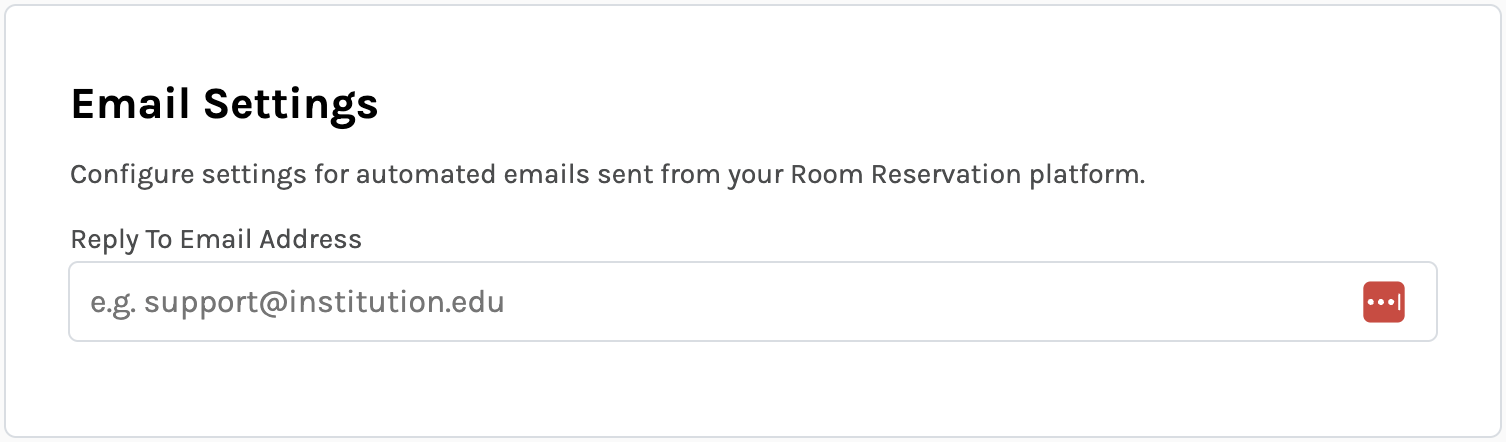
The reply to email setting can be found in Rooms Admin > Platform Settings > Email Settings.
Default Map View Configuration
Platform Admins can now configure the default map view for their reservation experience. From Platform Settings, admins can pan and zoom an interactive map, then save their preferred center point and zoom level. Reservers will see this as the initial map view when searching for spaces.
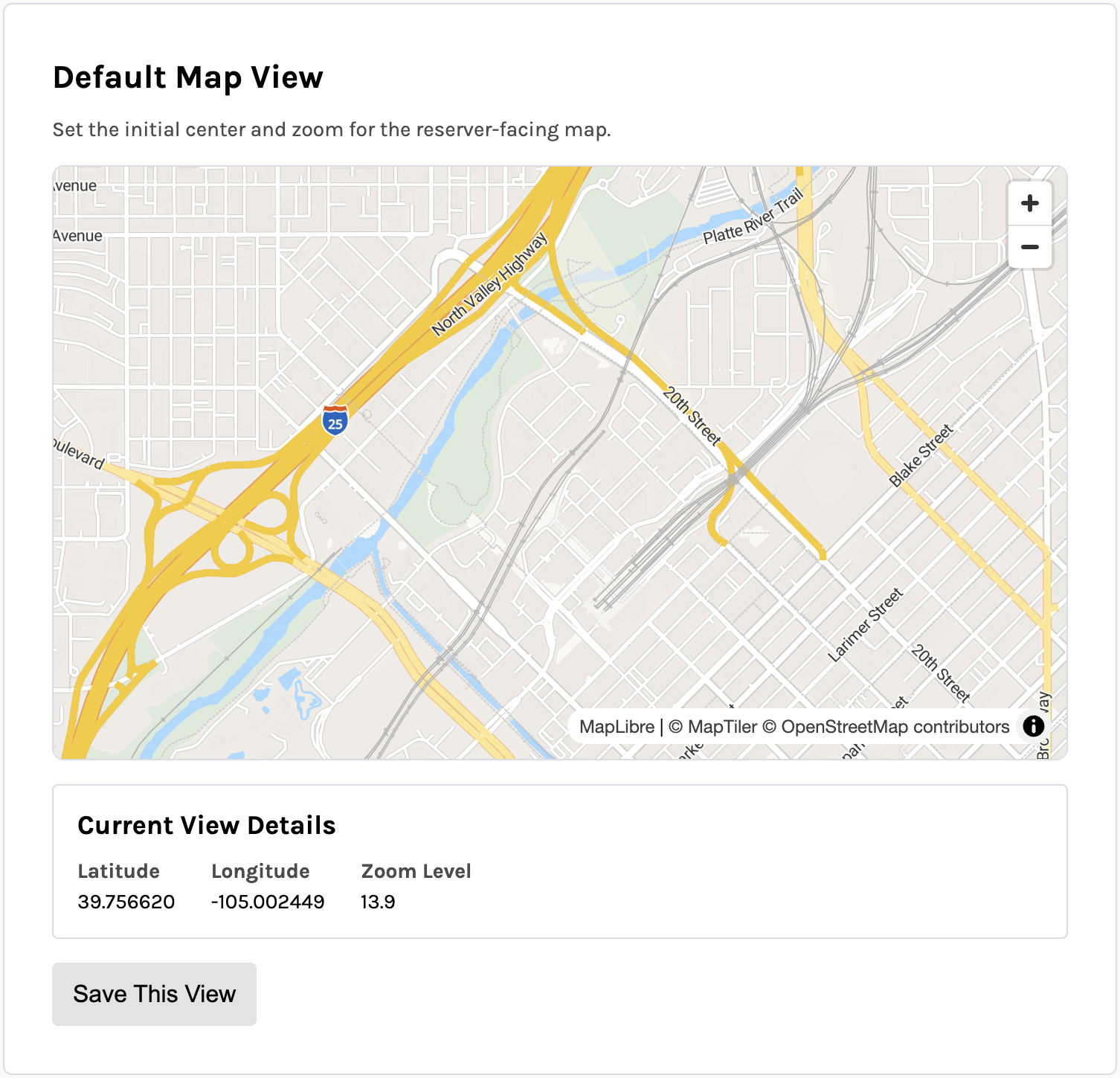
The default map view setting can be found in Rooms Admin > Platform Settings > Default Map View.
Building and Space Location Picker
Spaces have their own locations separate from buildings now. Admins can now set building and space locations using a visual map picker instead of manually entering latitude and longitude coordinates. The map picker supports drag-to-place positioning and syncs with the existing address autocomplete for buildings. New spaces default to their parent building's location.
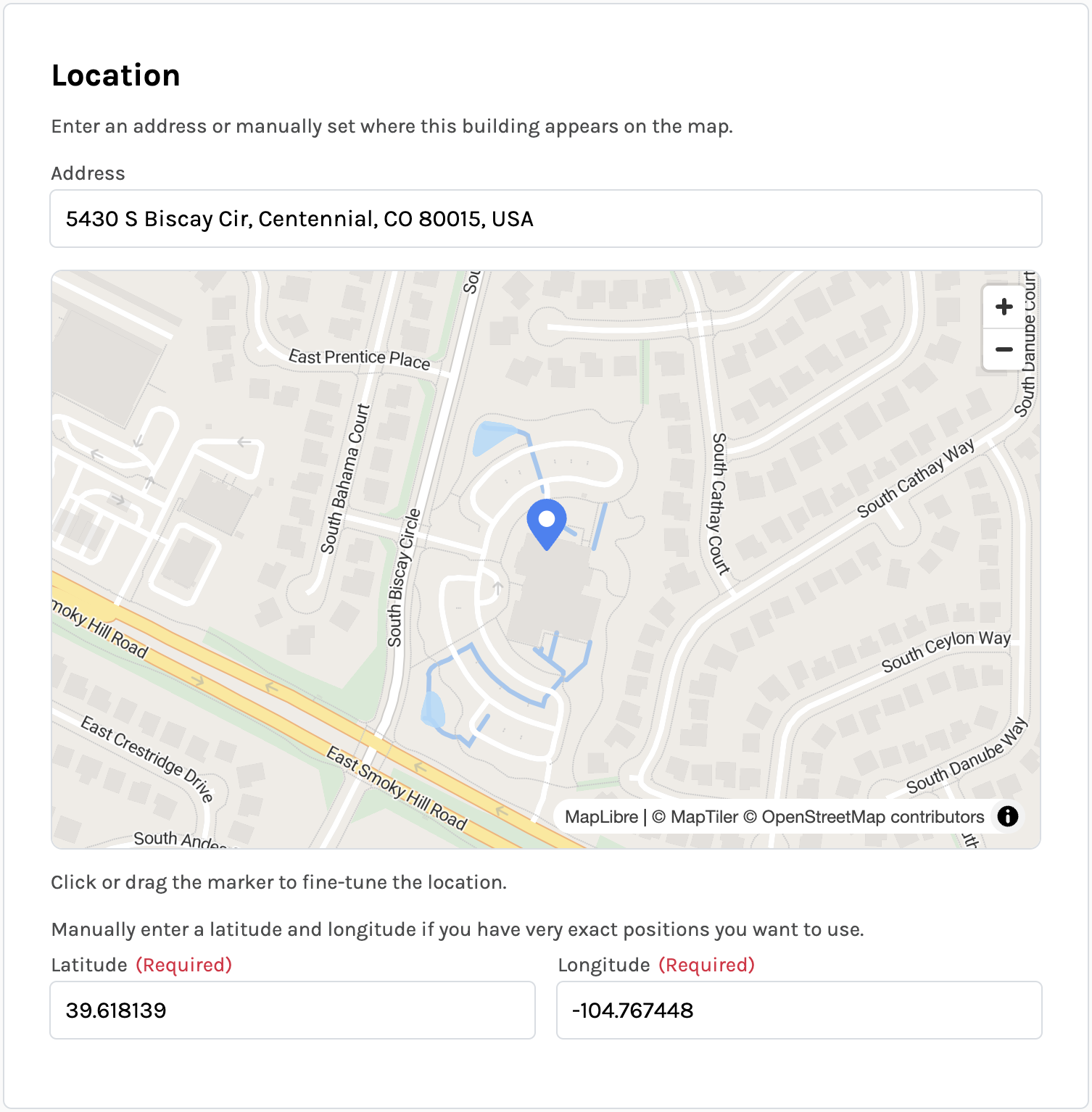
Entering an address will automatically place the pin on the map and fill out the latitude and longitude. Latitude and longitude may also be manually entered in the text fields or by clicking on the map.
Usability Updates
- The Admin Create Reservation wizard now displays per-line availability conflict errors on the Review & Submit step. If another reservation was made while the admin was building the request, conflicting rows are highlighted with inline error messages and options to remove or edit the affected reservation.
- The User Group reservation policy "Enforce Building Hours" has been updated to "Enforce Building & Space Hours" and now enforces space-specific hours when set, falling back to building hours otherwise.
- The Admin Reservations page now uses a status dropdown filter instead of status tabs
- Building names are now more prominently displayed on space search result cards, making it easier for reservers to distinguish spaces across buildings.