Reservation groups let you manage multiple related reservations together, but sometimes you need to work with individual dates. This guide shows you how to cancel, approve, reject, and edit reservations—whether you're managing all dates at once or handling them one by one.
For Reservation Owners
Viewing Your Reservation Groups
To see your reservation groups:
- Log in to your account
- Navigate to My Reservations
- Find your reservation group in the list
- Click on the group name to view details
In the detail view, you'll see:
- Group information (event name, description, and group status)
- Dates & Times section showing all individual reservations with:
- Reservation Date
- Reservation Time
- Event Date
- Event Time
- Status for each reservation
- Action buttons (Cancel)
Canceling a Single Reservation
Need to cancel just one date in your recurring or multi-day reservation? You can do this without affecting other dates.
Steps:
- Go to My Reservations and select your reservation group
- In the Dates & Times section, find the specific reservation you want to cancel
- Click the Cancel button next to that reservation
- Confirm the cancellation in the popup
What happens after canceling:
- Only the selected reservation is cancelled
- Other reservations in the group remain unchanged
- The group status updates automatically:
- If all reservations are now cancelled → Group status becomes "Cancelled"
- If some remain approved → Group status becomes "Partially Approved"
- If some remain pending → Group status becomes "Under Review"
- If the reservation was already approved, any assigned Service Providers are notified they are no longer needed
Important notes:
- You can only cancel future reservations
- You cannot cancel rejected reservations (they're already declined)
- Past reservations cannot be cancelled
Example use case:
You have a recurring meeting every Monday for 10 weeks, but there's a university holiday on Week 5. Cancel just that one Monday while keeping the other 9 meetings.
Canceling All Reservations in a Group
To cancel your entire reservation group:
- Go to My Reservations and select your reservation group
- Click the Cancel All button in the header section
What happens:
- All future Pending and Approved reservations are cancelled
- Past reservations remain unchanged (they already happened)
- Already-rejected reservations remain unchanged
- Service providers are notified for any Approved reservations that are now cancelled
When to use Cancel All:
- Your event is called off completely
- You found a different space and don't need these reservations
- Plans changed and you need to start over
What You Cannot Do as a Reservation Owner
- Edit reservation dates or times - Contact your institution's admin if you need to change dates or times
- Re-open cancelled or rejected reservations - You'll need to submit a new reservation request
- Approve your own pending reservations - Admins handle approvals
- Cancel past reservations - They've already occurred
For Event Coordinators & Admins
Viewing Pending Reservation Groups
To review reservation groups:
- Navigate to Room Reservation Admin > Pending Reservations
- Find the reservation group you want to review
- Click to expand the group and see all individual reservations
- View the Dates & Times table showing:
- Reservation Date
- Reservation Time
- Event Date
- Event Time
- Status for each reservation
- Action buttons (Approve, Reject, Edit, Cancel)
Approving or Rejecting Individual Reservations
You can approve or reject specific reservations within a group without affecting others.
To approve a single reservation:
- In the Dates & Times section, find the reservation
- Click Approve next to that specific date
- The system validates the reservation:
- Checks for time conflicts with other approved reservations
- If available, the reservation is approved
- If there's a conflict, you'll see an error and the reservation stays pending
- Group status updates automatically based on what's left:
- All approved → Status: "Approved"
- Some still pending → Status: "Under Review"
- No pending, but mix of approved/rejected → Status: "Partially Approved"
To reject a single reservation:
- In the Dates & Times section, find the reservation
- Click Reject next to that specific date
- Confirm the rejection
- Group status updates automatically:
- All rejected → Status: "Rejected"
- Some still pending → Status: "Under Review"
- No pending, but some approved → Status: "Partially Approved"
Email notifications:
- Reservation owners are notified when reservations are approved or rejected
Reservation Rejection Reasons
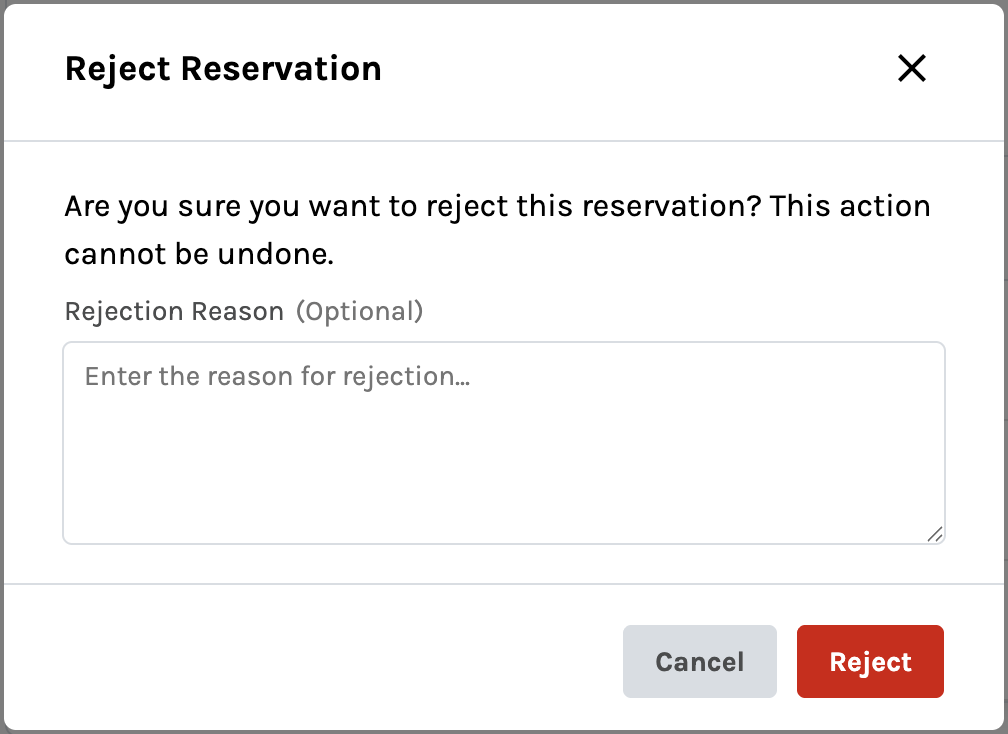
Event Coordinators can now provide a rejection reason when rejecting a reservation or an entire reservation group. After clicking Reject, a modal prompts the coordinator to optionally enter a reason. The rejection reason is included in the email notification sent to the reserver.
Approving or Rejecting All Reservations
For straightforward requests, you can approve or reject all reservations at once.
To approve all reservations:
- Click Approve All in the header
- The system checks all pending reservations for conflicts:
- If no conflicts: All reservations are approved, group status becomes "Approved"
- If conflicts exist:
- You'll see an error popup: "The following reservations have a time conflict. Please edit those reservations and try again."
- All reservations remain unchanged
- If conflicts appeared, review the specific conflicting dates and work with the reserver to find alternatives
To reject all reservations:
- Click Reject All in the header
- After pressing Reject All: All future Approved and Pending reservations are rejected
Email notifications:
- Reservation owners are notified when their group is approved or rejected
Editing Reservation Date and Time
As an Event Coordinators or Admin, you can change when individual reservations occur. There are two locations you can do this from:
While Reviewing Reservation Groups
- In the Dates & Times section, find the reservation you want to edit
- Click Edit next to that reservation
- A modal opens where you can change:
- Reservation Date
- Reservation Time
- Event Time (optional)
- Click Save Changes
While Viewing the Timeline
- Go to Timeline
- Find the Approved reservation block you want to edit
- Click and drag the start/end time of the reservation block
- A modal opens where you can change:
- Reservation Time
- Event Time (optional)
- Click Save Changes
After you save your changes through either method, the system validates your changes:
Availability Check:
- Is the new date and time available?
- If NO → You'll see an error message. Please select a different date and time and try again.
- If YES → Proceeds to next check
Event Time Validation:
- Is the event time within the reservation time?
- If NO → You'll see an error message. Please select a different event time within your reservation time and try again.
- If YES → Changes are saved
After successful edit:
- The reservation updates with the new date/time
- The reservation keeps its current status (pending stays pending, approved stays approved)
- Reservation owner receives an email notification about the change
- Group status remains the same because reservations keep their statuses.
Common Questions
For Reservation Owners:
Q: What happens to my setup requests if I cancel one date?
A: Setup requests remain active for all approved reservations in your group. Only the cancelled date's setup is removed.
Q: Can I uncancelled a reservation I cancelled by mistake?
A: No, cancelled reservations cannot be reopened. You'll need to submit a new reservation request. Contact your Event Coordinator—they may be able to help you quickly recreate it.
Q: I cancelled all my reservations but my group status says "Partially Approved" instead of "Cancelled"?
A: This means some reservations were already rejected before you cancelled. The group shows "Partially Approved" because you have a mix of cancelled and rejected reservations. Functionally, none of your reservations are active.
For Event Coordinators & Admins:
Q: What if I accidentally reject the wrong reservation?
A: Contact the reservation owner and ask them to submit a new request for that date. Rejected reservations cannot be reopened, but you can prioritize their new request.
Q: Can I edit multiple reservations at once?
A: Currently, you need to edit each reservation individually. If a group needs significant changes, consider asking the reserver to cancel and resubmit with corrected dates.